Passkeys (FIDO2) for Windows and browsers: how to move on from passwords without losing access
Passkeys are now a realistic, everyday replacement for passwords on Windows PCs. They reduce phishing risk because there is no “secret string” to steal, and sign-in is tied to a trusted device plus your screen unlock (PIN, fingerprint, or face). The tricky part in 2026 is not creating passkeys—it’s migrating safely: deciding where they’re stored, setting up recovery before you need it, and keeping access to older services that still insist on passwords.
How passkeys work in practice (and why they block phishing)
A passkey is a FIDO2/WebAuthn credential built on public-key cryptography. When you create one for a specific website or app, your device generates a key pair: a private key that stays protected on your side, and a public key that the service stores. During sign-in, the service sends a challenge and your device signs it with the private key—so the service can verify you without you ever typing a password.
This is why passkeys are so resistant to phishing. A fake site can’t use your passkey to sign into the real one, because WebAuthn ties the sign-in to the genuine domain. Even if someone tricks you into opening a look-alike page, the passkey flow won’t complete against the wrong origin, and there’s no password to hand over.
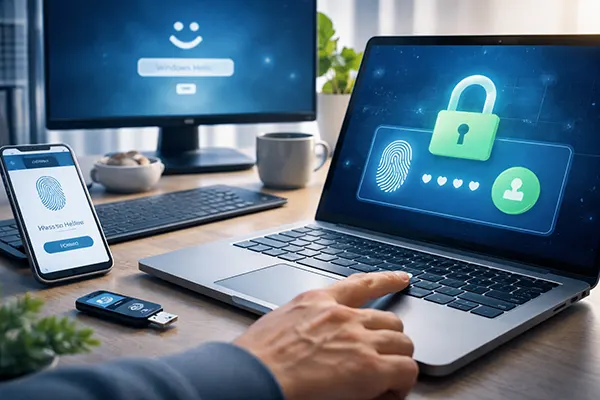
On Windows, passkey sign-in is usually mediated through Windows Hello. That means the “thing you do” at sign-in is the same gesture you already use to unlock your PC: a Windows Hello PIN, or biometrics if configured. On Windows 11, having Windows Hello set up (at least a PIN) is a practical prerequisite for passkeys to feel seamless.
Windows Hello, FIDO2, and where the private key actually lives
In a typical Windows 11 setup, Windows Hello acts as the user verification step for passkeys. If you have face or fingerprint configured, you’ll see that prompt; otherwise Windows falls back to the Hello PIN. This is normal behaviour and it’s one reason Windows Hello PIN quality matters: treat it as a security control, not a convenience code.
There are two common “homes” for passkeys in 2026. First is a built-in device authenticator (your PC or phone), protected by the device’s secure hardware and unlock method. Second is a synced vault (for example, a vendor’s account-backed credential store), which can replicate the passkey to other trusted devices after you authenticate. The trade-off is simple: device-only storage is naturally contained; synced storage is more convenient but relies on strong account protection and recovery settings.
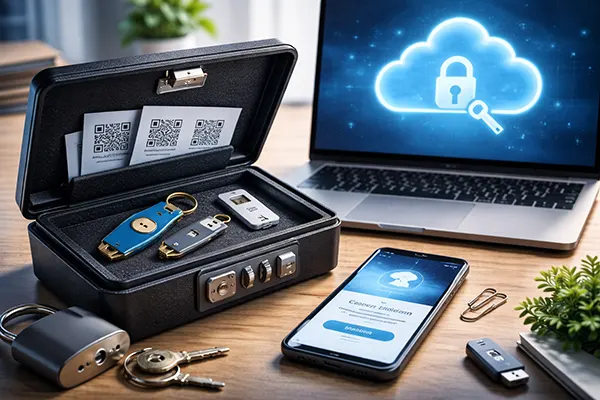
Finally, there are hardware security keys (often called “FIDO2 keys”). They can store passkeys too, and they’re excellent as a spare because they’re not tied to a single phone. For many people, the best balance is: passkeys on your primary devices for convenience, plus one hardware key stored safely as an “I can still get in” option.
Moving from passwords in 20–30 minutes (without breaking older accounts)
Start with the accounts that matter most: email, your main password manager (if you use one), Apple/Google/Microsoft accounts, and banking where supported. These are your “root keys” because they control recovery and access to everything else. Before you add passkeys, ensure each account has up-to-date recovery options: a second factor, recovery email, recovery phone, and (where offered) recovery codes stored offline.
Next, enable passkeys in at least two places: (1) your daily driver device (phone or primary PC) and (2) a backup path. The backup can be another device you already own (tablet, second laptop) or a hardware security key. The goal is not to be clever—it’s to avoid a single point of failure.
Finally, don’t “delete all passwords” on day one. Many services still keep passwords as a fallback for legacy apps, older devices, or account recovery flows. A sensible migration is: add a passkey, test it on a second device/browser, confirm recovery options work, then decide whether to keep the password as emergency access or remove it if the service clearly supports fully passwordless operation.
What to do with services that don’t support passkeys yet
For older services, the safest pattern is to keep a strong, unique password generated by a password manager and add a second factor (TOTP app, push approval, or hardware key) if available. Passkeys are brilliant, but you should not weaken security elsewhere just because some logins remain password-based.
If a service supports “Sign in with Microsoft/Google/Apple”, consider using that as a bridge. You can protect the identity account with passkeys and reduce the number of separate passwords you maintain. This approach also simplifies recovery because you centralise sign-in to fewer well-protected accounts.
Where a service forces SMS-based recovery, treat it as a risk and compensate: lock down your mobile number with your carrier where possible, enable account alerts, and keep recovery codes offline. The aim is to make the weakest link less exploitable while you wait for proper passkey support.
Recovery planning: lost phone, replaced PC, and shared or work devices
The most common failure story is predictable: someone sets up passkeys on a phone, loses the phone, then realises recovery was never finished. Avoid this by planning the “day you lose a device” scenario upfront. You want at least two independent ways back in: another trusted device already signed in, or a hardware security key, plus account recovery options that you’ve verified recently.
If your passkeys are synced through a vendor account, recovery depends on that account’s security. That means strong sign-in protection (passkey + additional verification where offered), and careful handling of recovery channels. If your recovery email is weak, or your mobile number is easy to hijack, your synced passkeys become easier to attack indirectly.
On shared PCs and managed work machines, passkeys need extra thought. You generally shouldn’t store personal passkeys on a shared Windows profile. For work, follow organisational policy: many teams require Windows Hello for Business, device compliance, or specific credential providers. When in doubt, keep personal and work sign-ins separated and prefer hardware keys for portable, policy-friendly access.
Home vs work PC checklist (so you don’t lock yourself out)
For a home PC: set up Windows Hello (PIN plus biometrics if available), ensure the device is encrypted (BitLocker on supported editions), and keep your Microsoft/Google/Apple account recovery options current. Add at least one passkey for a major account, test it in two browsers, and confirm you can sign in from a second device.
For a work PC: use only approved browsers and account types, and confirm whether third-party credential providers are allowed. If your organisation uses conditional access or requires security keys, register a hardware key early and keep it accessible. Document the recovery path in your team’s secure process (not in a public doc and not in a chat room).
For both: keep one offline backup method. The simplest is a hardware security key stored safely plus printed or offline recovery codes for your root accounts. It sounds old-fashioned, but it’s exactly what saves you when a phone is lost, a laptop is stolen, or you’re travelling and suddenly can’t pass a device verification step.