BIOS/UEFI in 2026: 12 settings that really affect FPS and stability (and what not to touch)
In 2026, most gaming PCs are already “fast enough” on paper, yet people still get stutters, odd 1% lows, and the occasional crash that looks like a driver issue but starts much earlier — in firmware. BIOS/UEFI is where your CPU boost rules, memory training, and PCIe behaviour are decided before Windows even loads. The trick is knowing which options genuinely move the needle for frame-time consistency, and which ones mainly add heat, boot loops, or silent instability.
CPU and memory: the settings that decide smoothness before the game even starts
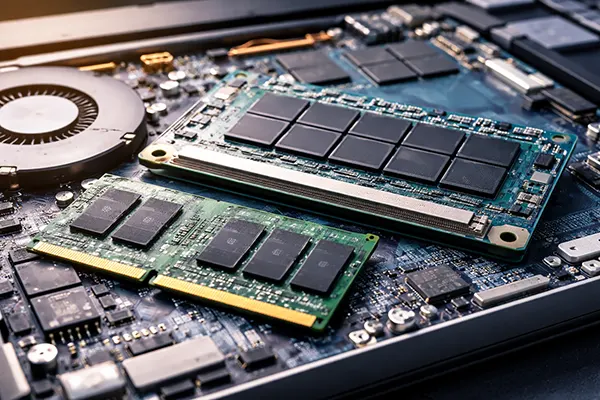
Setting 1 is your RAM profile: XMP (common on Intel kits) or EXPO (common on AMD kits). Leaving DDR5 on default speeds can cap minimum FPS and make frame times spiky in CPU-heavy titles, but enabling a profile is also the fastest way to reveal a weak memory controller or a slightly underpowered kit. If you enable XMP/EXPO and see rare crashes, don’t jump straight to “bad RAM”: try one step down in frequency (for example, 6000 to 5600), or keep the profile but relax one or two timings rather than pushing more voltage blindly. Most board vendors document XMP/DOCP-style behaviour and where to enable it, even if the menu names differ.
Settings 2–4 are the stability trio for DDR5: DRAM voltage, SoC/IMC-related voltage (names vary by vendor), and memory training behaviour. In 2026, fast boot features are tempting, but memory training shortcuts can produce “it boots, so it’s fine” instability. On many AM5 boards, options like Memory Context Restore can shorten boot times, yet can also be sensitive depending on the kit and BIOS maturity; a common stability pairing discussed by board communities is treating Memory Context Restore together with Power Down Enable rather than flipping one at random. Separately, SoC-related voltage deserves respect: too low can cause training failures, too high can cause long-term risk and random issues; several firmware updates across recent AMD 800-series boards have explicitly focused on CPU operating stability and memory compatibility by tightening voltage behaviour.
Settings 5–6 live under CPU power and boost controls: Intel power limits (often PL1/PL2 or “Turbo Power”), and AMD Precision Boost Overdrive plus Curve Optimiser. The goal for gaming is not peak benchmark numbers, but stable boost under typical game loads. If your system is stable but runs hot and clocks down mid-session, sensible power limits and a modest negative curve can reduce temperature spikes and keep boost steadier — which often helps 1% lows more than chasing a higher all-core score. The “what not to touch” warning here is simple: don’t mix aggressive undervolting with raised power limits and then assume a quick 10-minute test is enough; that combination is famous for passing light loads and failing after an hour in a real game.
A practical way to tune without turning your PC into a weekend-long troubleshooting project
First, change one thing at a time and keep notes. A clean order for 2026 builds is: enable XMP/EXPO, confirm stability, then adjust boot/training shortcuts, then consider CPU boost tweaks. If you start by changing five values at once, you won’t know which one caused a micro-stutter, a driver reset, or a crash that looks unrelated. It’s boring, but it’s the difference between a stable daily system and a “works unless I open this one game” machine.
Second, validate with the kind of load you actually care about. Memory errors often show up as texture corruption, sudden game exits, or “random” application crashes, not a dramatic blue screen on the first boot. After enabling a memory profile, use a mix: a short synthetic test for obvious issues, then a real game session that stresses CPU, memory, and GPU together. If instability appears only after enabling faster boot or skipping training, roll back those training shortcuts first — they rarely add FPS, but they can definitely remove stability.
Third, treat “Auto” as a feature, not an insult. Modern boards in 2026 have far better auto rules than people remember from older DDR4 days. If you need to stabilise an EXPO/XMP kit, small, conservative steps beat hero numbers: one notch less memory speed, a slightly higher training margin if your board exposes it, or returning a sensitive voltage to Auto instead of locking it. The target is repeatable behaviour: consistent boot, consistent frame time, and no creeping instability after sleep or fast startup.
GPU and PCIe: the few firmware toggles that can change FPS (and when they backfire)
Settings 7–8 are the pair that most often affects game performance on modern GPUs: Above 4G Decoding and Resizable BAR (AMD often brands this as Smart Access Memory). When supported by your CPU, board firmware, GPU firmware, and drivers, Resizable BAR can improve performance in some titles by letting the CPU access a larger window of VRAM rather than small chunks. In 2026 it’s also “expected” for certain GPU lines (notably Intel Arc), so leaving it off can be a quiet handicap. The caution is that forcing it on unsupported combinations is a classic cause of odd behaviour, including crashes or inconsistent performance from game to game.
Setting 9 is PCIe link speed (or “PCIe Gen” selection) for the GPU slot and sometimes for the primary NVMe slot. Auto is usually correct, but there are real-world cases where a board negotiates an unstable link, especially after hardware changes or with certain riser cables. If you see rare GPU driver resets, black screens under load, or sudden drops to single-digit FPS, locking the GPU slot to the correct generation (for example, Gen4 instead of Auto on a Gen4 GPU) can stabilise the link. This is one of those changes that can look like “free performance” when it’s actually fixing an error-correction mess that was wasting time behind the scenes.
Settings 10–11 relate to latency and consistency more than headline FPS: power management for PCIe devices (such as ASPM options) and storage mode choices that affect how quickly assets stream in. In a clean gaming system, aggressive link power saving can sometimes add latency spikes, while overly aggressive “maximum performance” settings can increase idle power and heat for no visible gain. If your stutter happens during asset streaming, make sure your NVMe slot is running at its intended link width and generation, and avoid experimental storage tweaks in firmware unless you have a specific problem you’re solving.
How to spot whether a BIOS change helped — or just moved the problem around
The easiest trap is testing with the wrong metric. Average FPS might rise while frame pacing gets worse, especially if you changed something that increases boost for short bursts but introduces thermal or power oscillations. In 2026, it’s smarter to watch 1% lows, frame-time graphs, and whether clocks remain stable during a long play session. A change that adds 2–3 FPS average but introduces a hitch every few minutes is a downgrade for most players.
If performance drops after enabling Resizable BAR, don’t assume the feature is “bad”. Check basics: BIOS update notes for your board, GPU driver version, and whether Above 4G Decoding is enabled alongside it. Some games benefit, others do not, and a few can regress; the right move is to test a small set of titles you actually play. The goal is not ideology, it’s results on your own hardware.
When you troubleshoot PCIe stability, keep the approach reversible. If forcing a PCIe generation fixes crashes, you’ve learned something useful: the system was negotiating an unstable link. From there you can decide whether to keep the lock, reseat hardware, update firmware, or replace a riser cable. Firmware is not only about speed — it’s also your first line of defence against flaky behaviour that looks like “Windows issues” but is really signal integrity and negotiation.
Safety, thermals, and “do not touch”: settings that protect stability more than they boost FPS
Setting 12 is the boring one people regret ignoring: cooling and fan/pump behaviour in firmware. Modern CPUs boost aggressively, and in 2026 a weak fan curve can cause temperature spikes that lead to downclocking, which shows up as inconsistent FPS rather than an obvious thermal warning. A sensible curve (and correct pump mode if you use an AIO) can stabilise boost behaviour and reduce the “fast then suddenly sluggish” pattern in longer sessions. This is not glamorous tuning, but it’s one of the most reliable ways to keep performance consistent.
Two “do not touch unless you have a reason” areas are security boot features and virtualisation toggles. Secure Boot and TPM are often required for certain Windows features and game anti-cheat expectations; turning them off as a random experiment can create compatibility headaches that have nothing to do with FPS. Virtualisation (Intel VT-x / AMD-V / SVM) is similar: disabling it might help if you’re resolving a specific virtualisation conflict, but it’s not a magic gaming accelerator and can break tools you rely on. If you’re chasing performance, focus on the settings that change actual compute and memory behaviour, not the ones that change compliance and system features.
Finally, be cautious with deep voltage and load-line calibration tweaks. Some boards expose LLC levels, per-rail offsets, and behaviour that can be useful for stabilising an overclock, but they can also create overvoltage spikes or strange transient behaviour. In recent years, firmware updates on certain boards have explicitly tightened power delivery behaviour to improve CPU operating stability, which is a strong hint that “manual everything” is not automatically better. For a gaming PC, stability and predictable boost usually beat an extra 50 MHz that only exists in short benchmarks.
A quick “safe defaults” mindset for 2026 gaming builds
If you want a reliable baseline that still performs well, start with: XMP/EXPO enabled, everything else mostly Auto, Resizable BAR enabled only if your hardware supports it, and a sensible fan curve. That combination covers the biggest real-world gains without inviting the most common failure modes. Then play the games you actually care about for long enough to let heat soak and background tasks happen naturally.
If something goes wrong, roll back in reverse order. Turn off the most recent change, test again, and avoid the temptation to “fix” an instability with a stack of extra tweaks. Memory instability, PCIe instability, and CPU boost instability can look identical from inside Windows. A clean rollback strategy saves time and avoids turning your BIOS into a mystery novel.
And keep firmware current, but not reckless. BIOS/UEFI updates in 2026 often include memory compatibility improvements, microcode changes, and stability fixes that matter for modern DDR5 kits and new CPU steppings. Read the changelog, update when it addresses your class of hardware or a stability issue you recognise, and re-check your key settings afterwards — especially memory profiles and power limits — because updates can reset or reinterpret them.